
Session options allow organizations to sell additional items beyond session tuition, such as meals, transportation, or merchandise, as well as set up mandatory registration or material fees. Four session option types are available: Normal, Pre-checked, Pre-checked and required, and Auto-apply to cart.
To create a Normal session option type: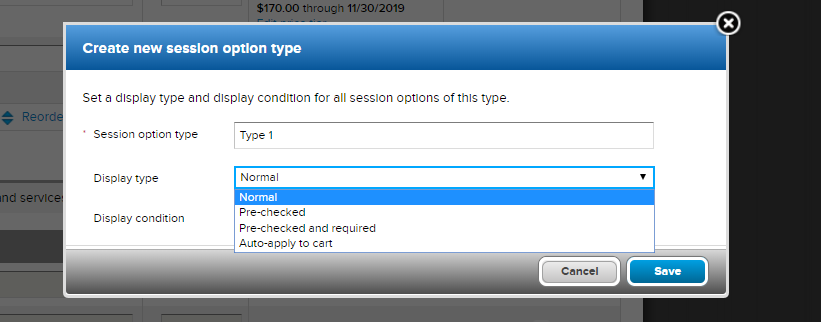
To create a Pre-checked session option type: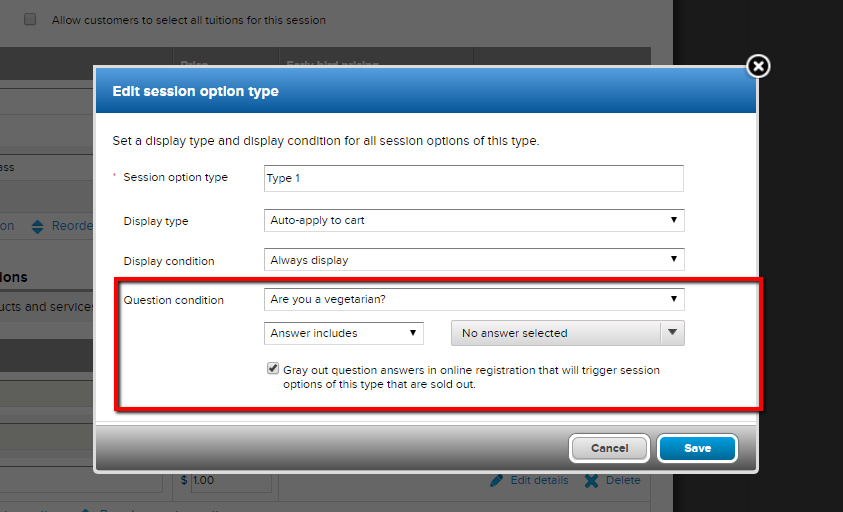
To create a Normal session option type:
- From Home page, click Setup under desired season
- Click Sessions
- Click on session name
- Scroll down and click Add a session option under Session Options header
- Enter Session option name and Price
- Click Edit Details
- Click Session option type dropdown
- Click Create new session option type
- Enter Session option type name
- Select Normal in Display type dropdown
- Click Save
To create a Pre-checked session option type:
- Follow steps 1–9 in the Normal session option type section above
- Select Pre-checked in Display type dropdown
- Click Save
- Note: Session options with the Pre-checked type are pre-selected during registration, and customers can opt out of them.
- Follow steps 1–9 in the Normal session option type section above
- Select Pre-checked and required in Display type dropdown
- Click Display condition dropdown and select a display option (Always display, Allow one purchase per registrant, or Allow one purchase per family)
- Click Save
- Note: Session options with the Pre-checked and required type display as pre-checked during registration and cannot be unchecked. Organizations can use this type to charge mandatory fees such as registration or material fees.
- Note: Use Allow one purchase per registrant when a fee is charged once per registrant. Once participant A purchases session options under this type, participant A is not required to purchase them again in future registrations.
- Note: Use Allow one purchase per family when a fee is charged once per family. Once participant A in family B purchases session options under this type, other participants in family B are not required to purchase them again in future registrations.
- Note: Session option types carry across seasons. Always create new session option types if mandatory fees should be charged per season. Editing a session option type created in a past season does not affect customers who already purchased options under that type in past seasons, and they will not be required to purchase them again.
- Follow steps 1–9 in the Normal session option type section above
- Select Auto-Apply to cart in Display type dropdown
- Click Display condition dropdown and select a display option (Always display, Allow one purchase per registrant, or Allow one purchase per family)
- Select desired custom questions in Question condition dropdown
- Select Answer includes or Answer does not include underneath the question
- Select desired answer(s) from No answer selected dropdown
- (Optional) Check Gray out question answers in online registration that will trigger session options of this type that are sold out
- Click Save
- Notes: Session options with the Auto-Apply to cart type are automatically added to the customer's shopping cart and displayed on the checkout page.
- Notes: Before creating this session option type, ensure your desired custom question is already created. If not, refer to Create Custom Questions to create one.