
After Enabling new CUI (Consumer User Interface), the registration page banners can be configured separately for desktop and mobile. You can include your agency name, logo and other branding elements in your banner images.
To set up the page banners: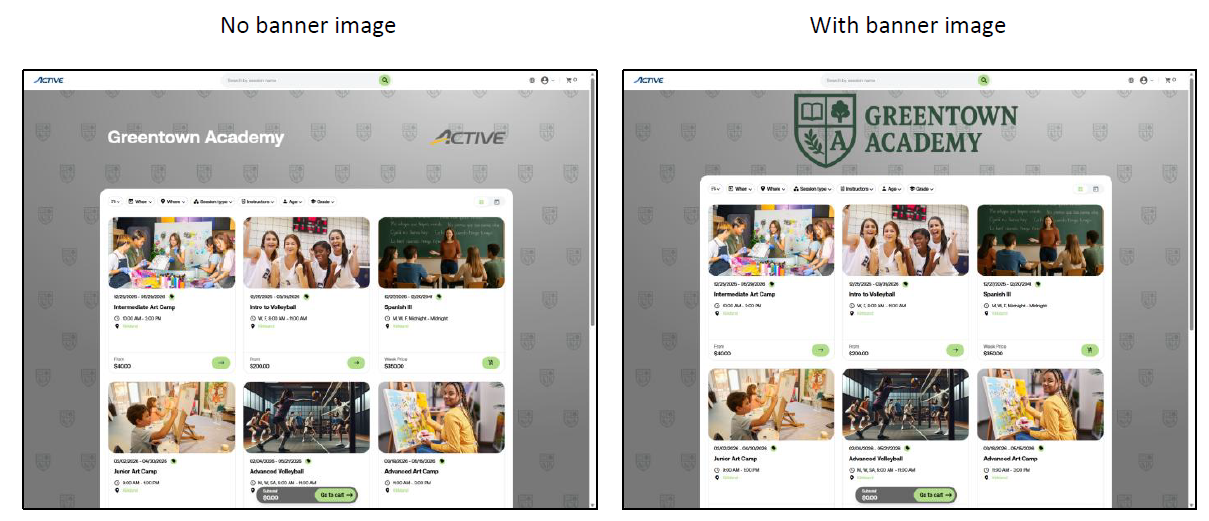
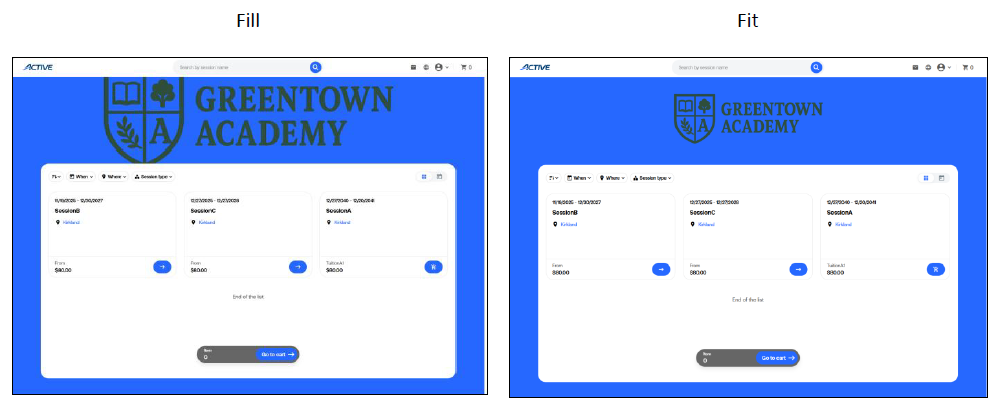
To set up the page banners:
- At homepage, click Setup under desired Season
- Click Look and feel
- Click Customize appearance
- Under Page banner, click + next to Desktop image to upload banner image for desktop users or click + next to Mobile image to upload banner image for mobile users
- Note: Desktop Image will control the banner image displayed on desktop devices. When no desktop banner is uploaded, the page will default to display the Organization Logo next to the Organization name as the header. (see below for example)
- Note: Mobile Image will control the banner image displayed when viewing the Session Selection page from a mobile device. When no mobile banner is uploaded, the page will default to display the Organization Logo as the header.
- Configure Scaled (Fill / Fit) for Desktop image or/and Mobile image
- Note: Agencies that have not modified their banner image since migrating from the legacy CUI will default to Fit. Agencies uploading new banner images after enabling the new CUI will default to Fill.
- Configure Overlay
- None: No overlay is applied
- Mask: Apply a subtle gray overlay to the banner image
- Click Save changes on top-right corner
- Preview the overall appearance on Look and feel page
- Click Save and continue to save the customization for the season