- On home page, click Setup under desired season
- Click Sessions on the right
- Click desired session
- Scroll down to the Session options and click Edit details next to Session option
- Note: If it is a global session option, select Add-ons tab on the top and click Session options tab to locate it.
- Select drop‑down window next to Session option type, and select Create new session option type
- Enter Session option type name
- Select Display type as Auto-apply to cart
- Select Display condition as Always display
- (Optional) Select Question in Question condition if you wanted to add this session option based on the answer to the registration form question
.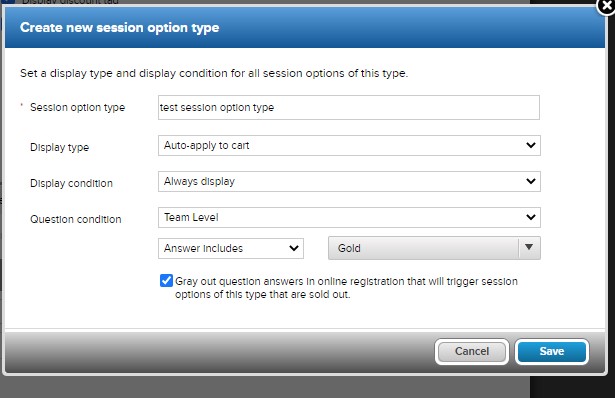
- Click Save for the session option type
- Click Save for the session option
- Click Save and Continue