
To access most ACTIVE Network products, you must have an ACTIVE Passport account. After creating your account on active.com, follow the steps below to log in to Camp & Class Manager.
 FAQ for Verification Codes:
1. To which email address is the verification code sent?
Visit Contact Us to connect with Technical Support if any help is needed.
- Log in your organization account on this website https://activeworks.active.com/
- Enter your ACTIVE Passport email address and password
- If you are using a private computer to which only you have access, then to stay signed in (for up to 30 days) after you close your browser or shut down your computer, select the Stay signed in option.
- If you are using a public or shared computer, then do NOT select to Stay signed in.
- The Stay signed in feature does NOT work if you sign out or your browser is in Private browsing, Incognito or a similar mode where cookies are not saved.
- Click Sign in
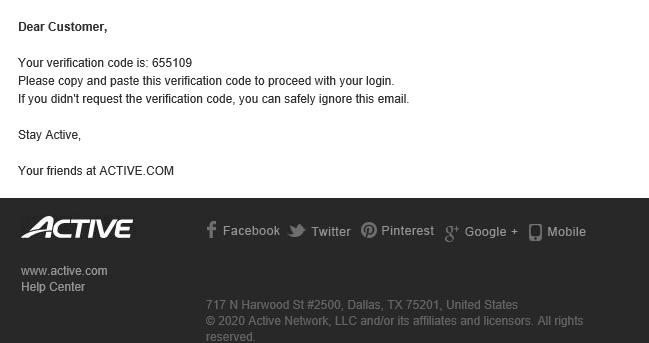
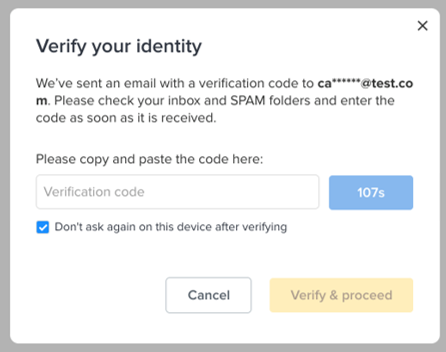
- Open the verification code email and copy-and-paste the verification code into the Verification code box:
- Selecting "Don’t ask on this device after verifying" places a cookie on the device for 365 days and removes the need for verification codes on future logins
- If you clear cookies or use private browsing, verification will be required again. For more information, please visit 'Verify Your Identity' Keeps Prompting upon Login
- Click Verify & proceed
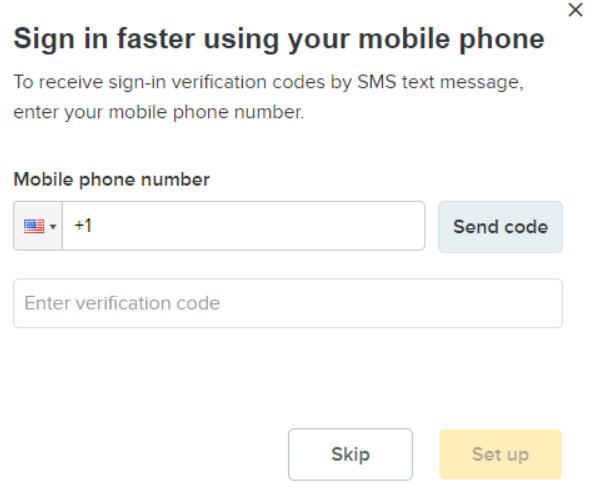
- It offers the option to register a mobile phone number at which to receive future sign-in authentication codes.
- (Optional) Click Skip to skip this step
- (Optional) Enter your phone number and click Send Code
- (Optional) Enter the code you received and click Set up
- After registering a mobile phone number, authentication codes for future sign-ins are sent by SMS instead of email
- After logging in, the URL will direct to CCM or ACTIVE Reserve as applicable
1. To which email address is the verification code sent?
- The verification code is sent to the Email address that you enter on the Sign in page, provided it is a valid email address for an ACTIVE Passport account.
- If you are a staff member of the organization, contact your organization’s administrator to create a new account for you using an accessible email address.
- If you are the organization’s administrator and need to change your login email, contact ACTIVE technical support.
- Check your spam or junk folder and mark the email as not junk.
- To resend the verification code, wait for the countdown to finish, then click Resend.
- If you are using a private computer, select Stay signed in to remain logged in for up to 30 days.
- If you are using a public or shared computer, do NOT select Stay signed in.
- This feature does not work if you sign out or use private browsing modes.
- Please clear your browser’s cache and try signing in again.
Visit Contact Us to connect with Technical Support if any help is needed.