Recipient lists allow you to send emails to a group of people specified by registration date, registered session, age, gender, or location.
When choosing to email recipients you can:
Note: To view the recipients who received your broadcasting email, please refer to Download email report
- Select a list that you have created and saved previously. To select multiple lists, hold down the Shift key and click all desired lists
- Create a Dynamic Recipient List to target a specific group based on your filter criteria
- Import a Recipient List of your locally stored contacts
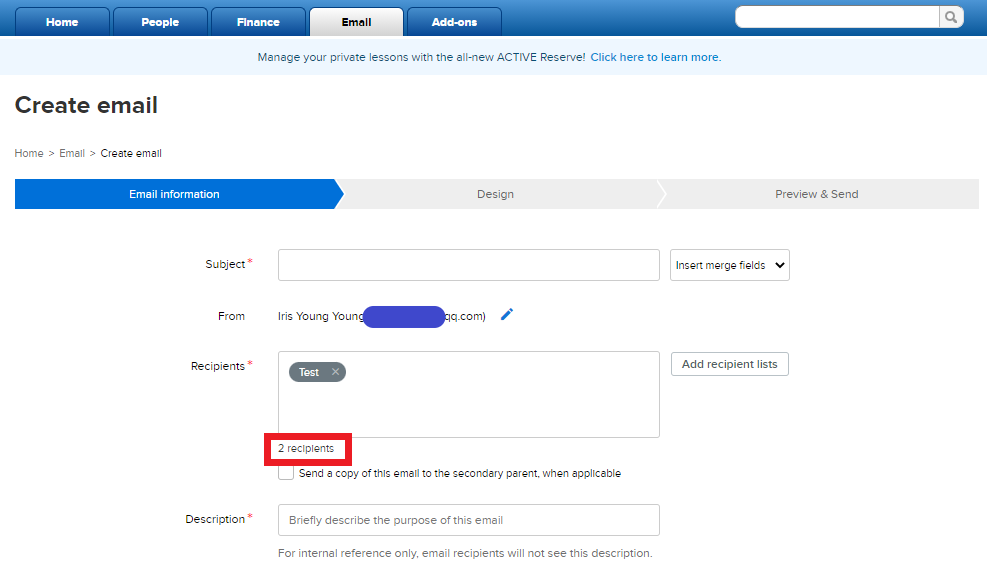
Note: To view the total number of unique email addresses in a recipient list, click Add recipient lists to select it. The amount will appear under the Recipients box
Note: Imported recipient lists cannot be edited but deleted. Follow steps below to delete imported list:
- Click Email tab
- Click New > New email
- Click OK
- Click Add recipients lists
- Select desired list name
- Note: A recipient list name with an exact Recipients number is an imported list. The number represents unique email addresses in the imported file
- Note: A recipient list name in blue hyperlink is a dynamic list. Clicking the name will direct you to dynamic setup filters
- Click Delete
- On the pop-up window, click Yes
Note: To view the recipients who received your broadcasting email, please refer to Download email report