
Agency users can update multiple sessions at once to streamline setup changes across sessions and reduce manual effort. Follow the steps below to batch edit sessions.
- Click Setup under season name
- Click Sessions under Settings on the right
- Select desired sessions
- Note: Up to 100 sessions can be selected
- Click Batch edit button, select the following fields and enter values
- Session Start Date
- Session End Date
- Overnight? (Overnight, Day or Both), Days of week and Time
- Registration Open Date
- Registration Open Time
- Registration Close Date
- Registration Close Time
- Session Location
- Session Type
- Sub-session type
- Display Status
- GL Code
- Internal IDs
Note: Selected classroom and instructors will be unassigned if you change the session times
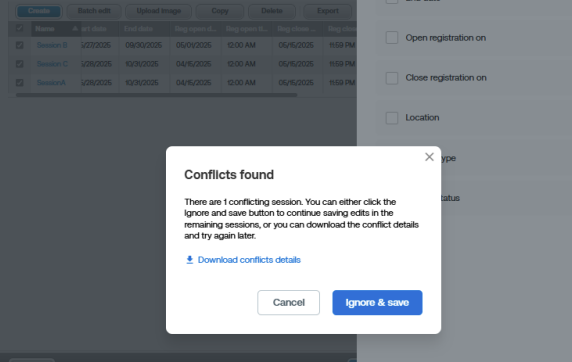
Note: If the sessions conflict with themselves, a window will appear. Click Download Conflicts Details to view the reason. If one or more sessions are conflicting, you can click Ignore & Save to continue saving edits for the remaining sessions
Note: If the sessions conflict with themselves, a window will appear. Click Download Conflicts Details to view the reason. If one or more sessions are conflicting, you can click Ignore & Save to continue saving edits for the remaining sessions
- Click Save
Note: This process may take several minutes. To ensure data updates correctly, do not exit the page while edits are processing. Once completed, the Sessions page will display again